


– A step-by-step tutorial (with screenshots)
Below is a step-by-step process on how to download SQL on Windows

SQL Server Management Studio (SSMS) is a tool that helps you manage different types of SQL systems, like SQL Server and Azure SQL Database. With SSMS, you can configure, monitor, and control SQL Server instances and databases. It also lets you use the Integration Services service to handle packages and keep an eye on their execution. Furthermore, Management Studio helps you organize packages, run them, transfer them in and out, move Data Transformation Services (DTS) packages, and update Integration Services packages.
Install MS SQL
Step 1: Download MS SQL Express Edition
Get started with the installation process by downloading MS SQL Express Edition from
Microsoft’s SQL Server Downloads page. Note: You may have to scroll down a little to see the
Developer and Express editions. Choose the Express Edition.
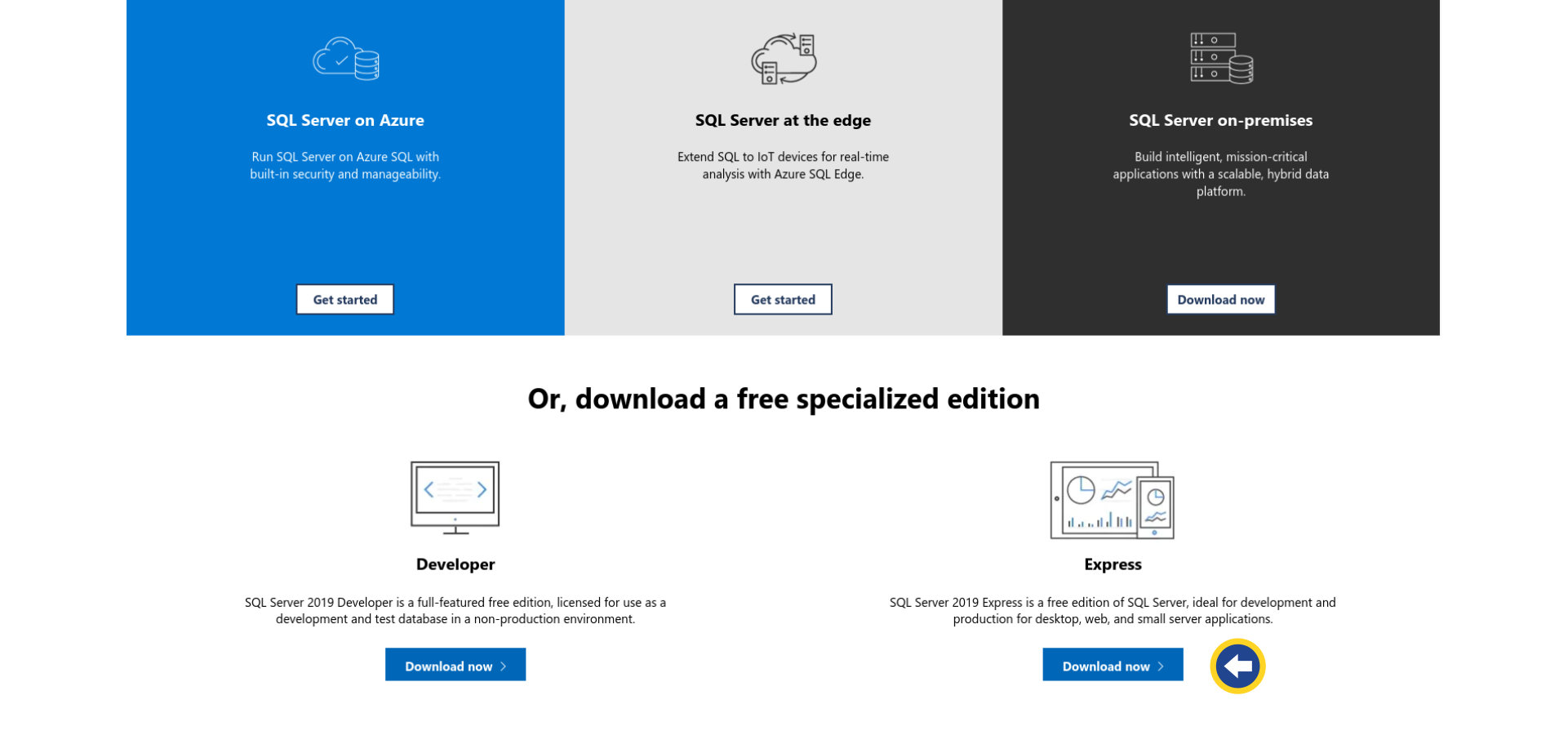
File name: SQL2019-SSEI-Expr.exe | Size: 6,231KB
Step 2: Run the MS SQL Install
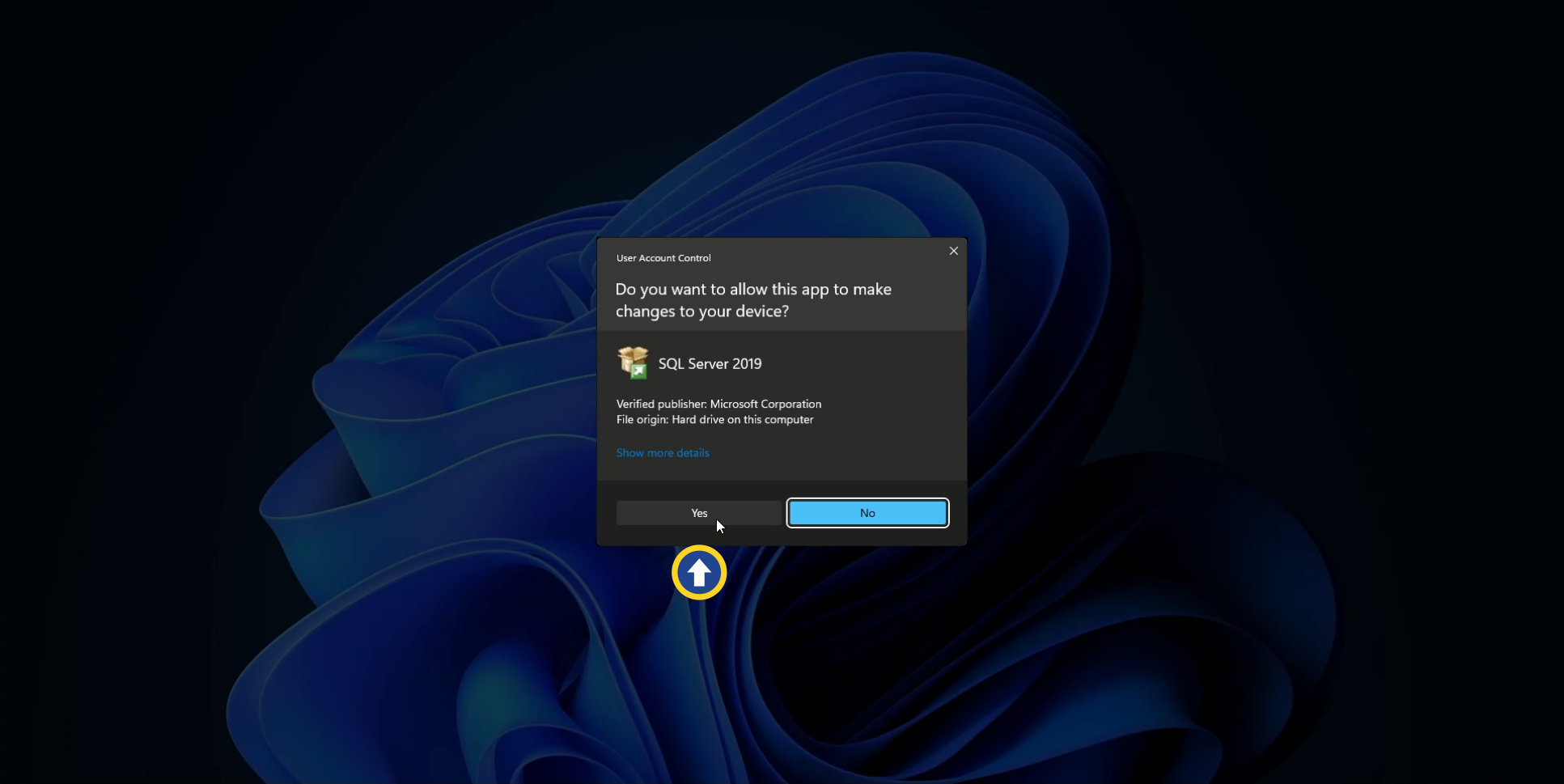
Locate SQL2019-SSEI-Expre.exe in your downloads folder, and double-click the file. User Account Control (UAC) will pop up and ask for permission. Click Yes.
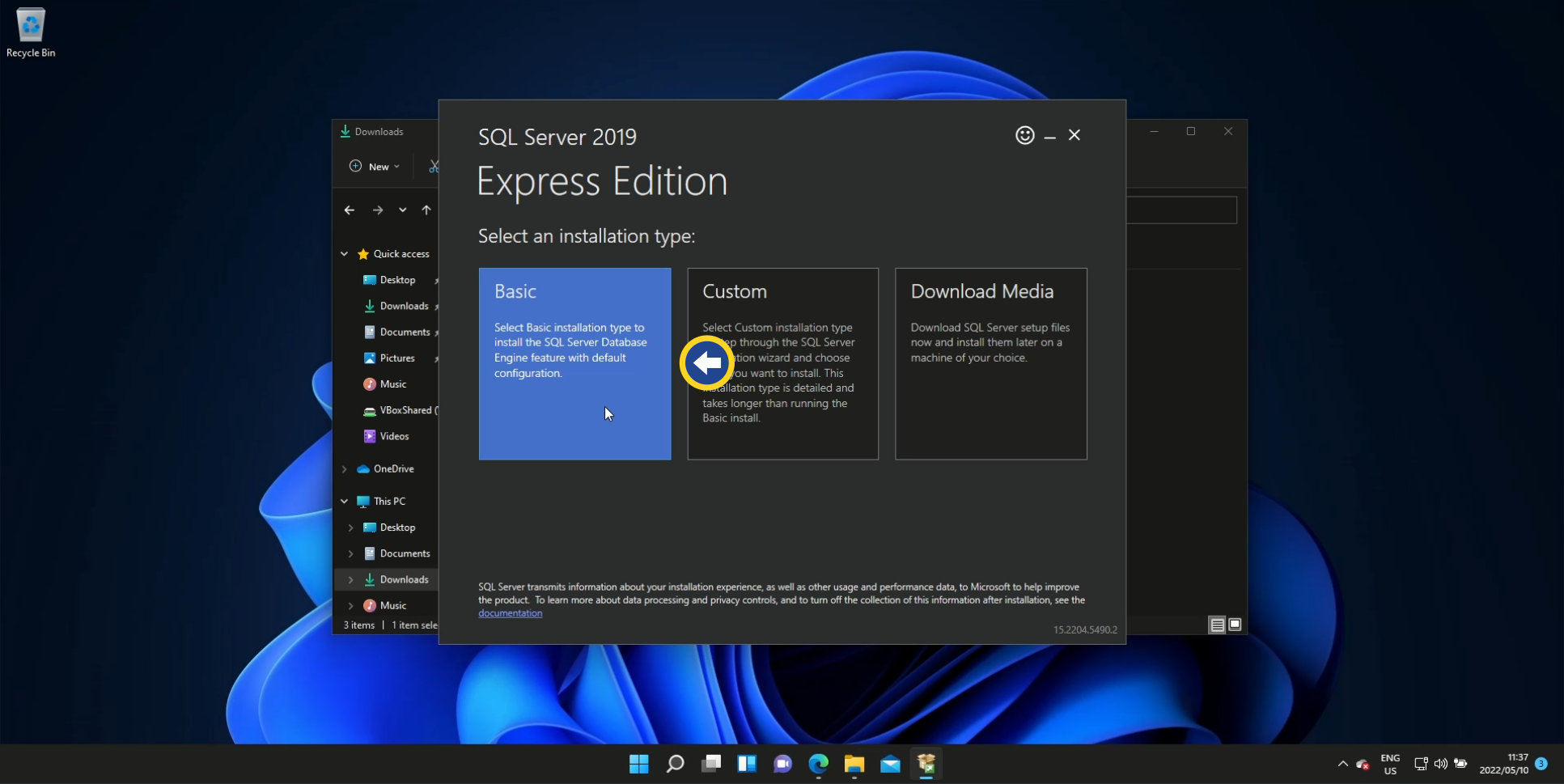
Step 3: Select the installation type
Select Basic on the Installation Type selection screen.
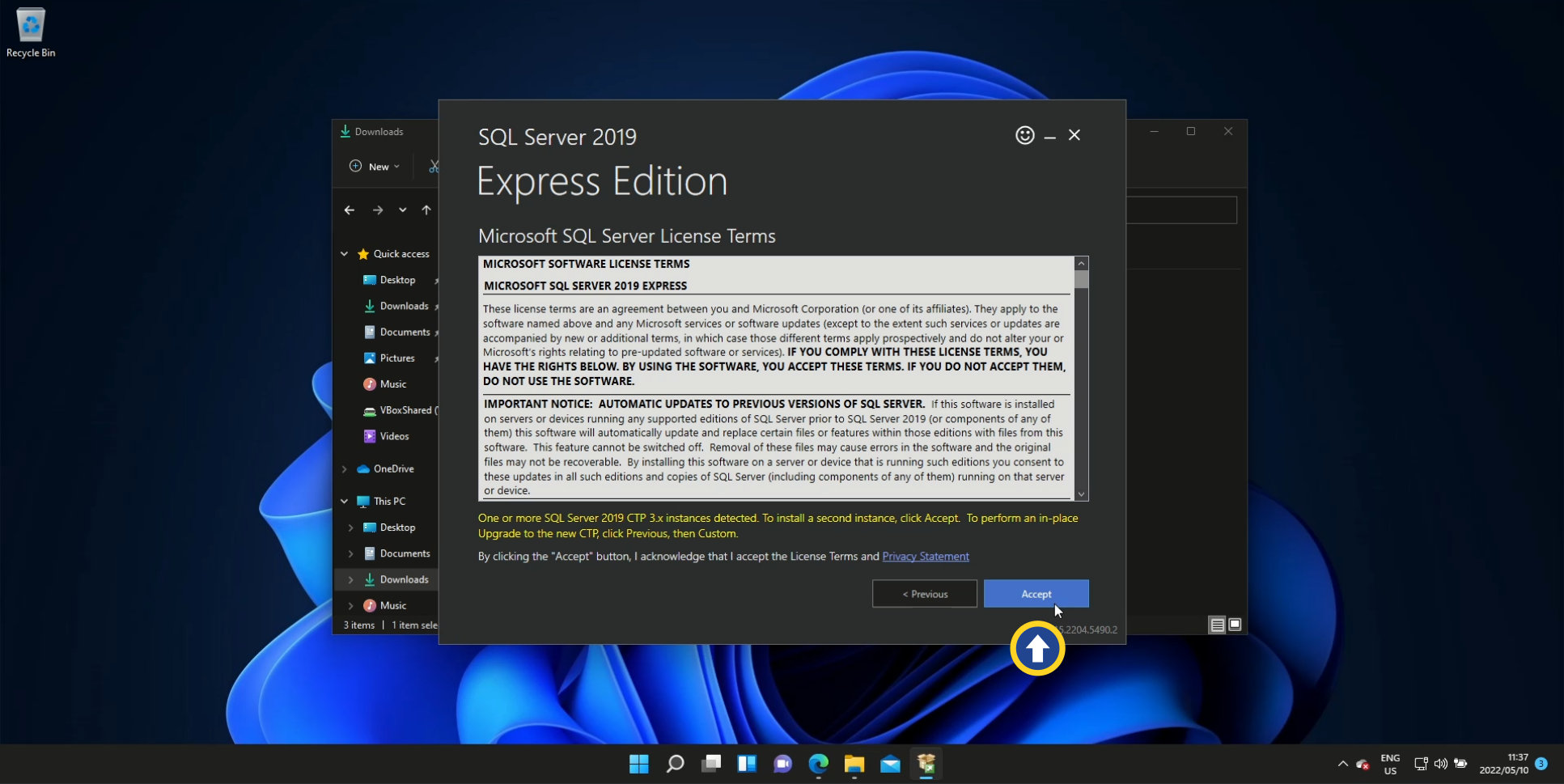
Step 4: Microsoft SQL Server License Terms
You’ll see this page, Click Accept.
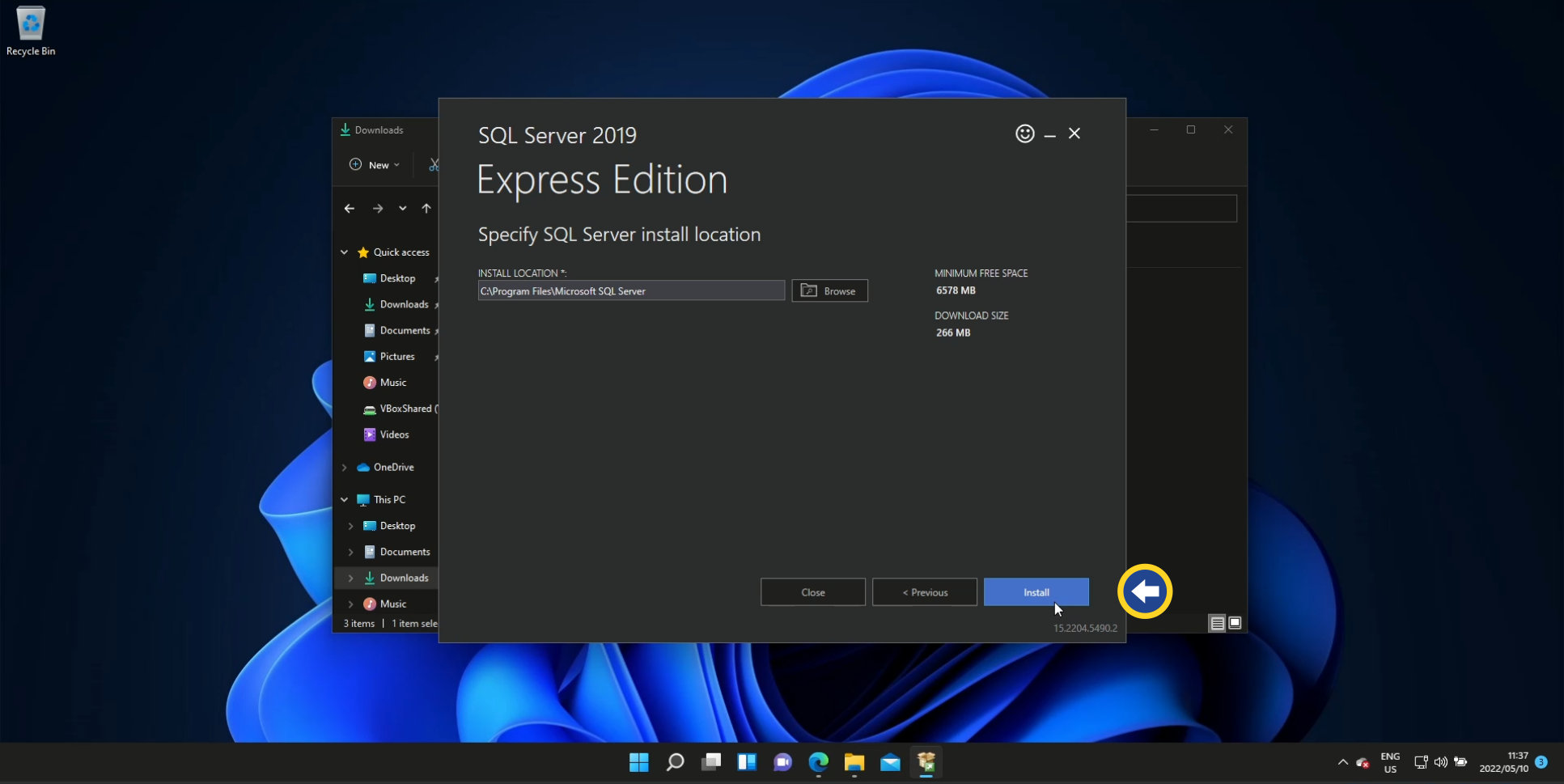
Step 5: Install the location
If you’re not happy with the default installation location, feel free to install MS SQL in a folder of your choice. When you’re ready, click Install.
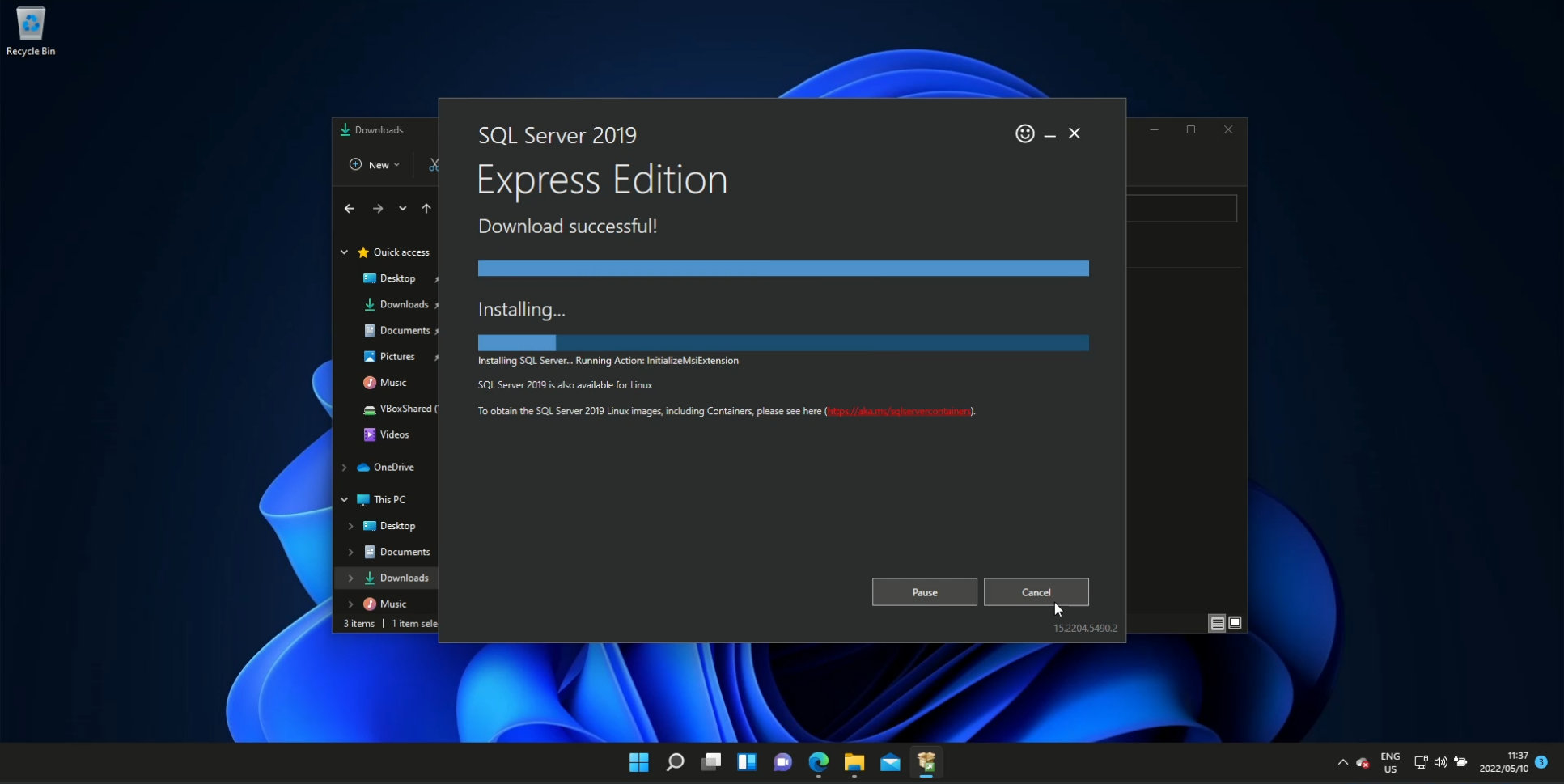
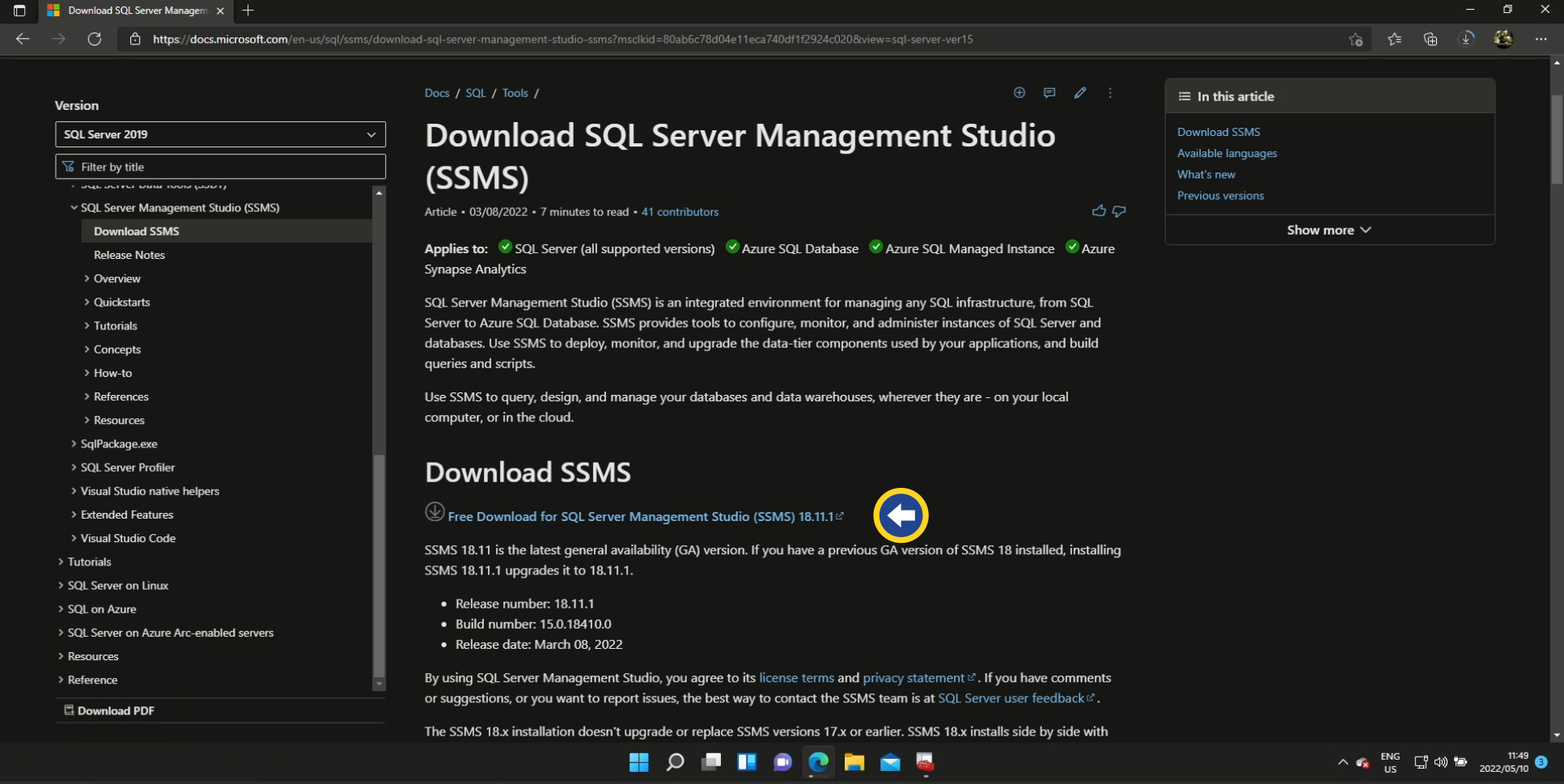
Step 6: Install SSMS (SQL Server Management Studio)
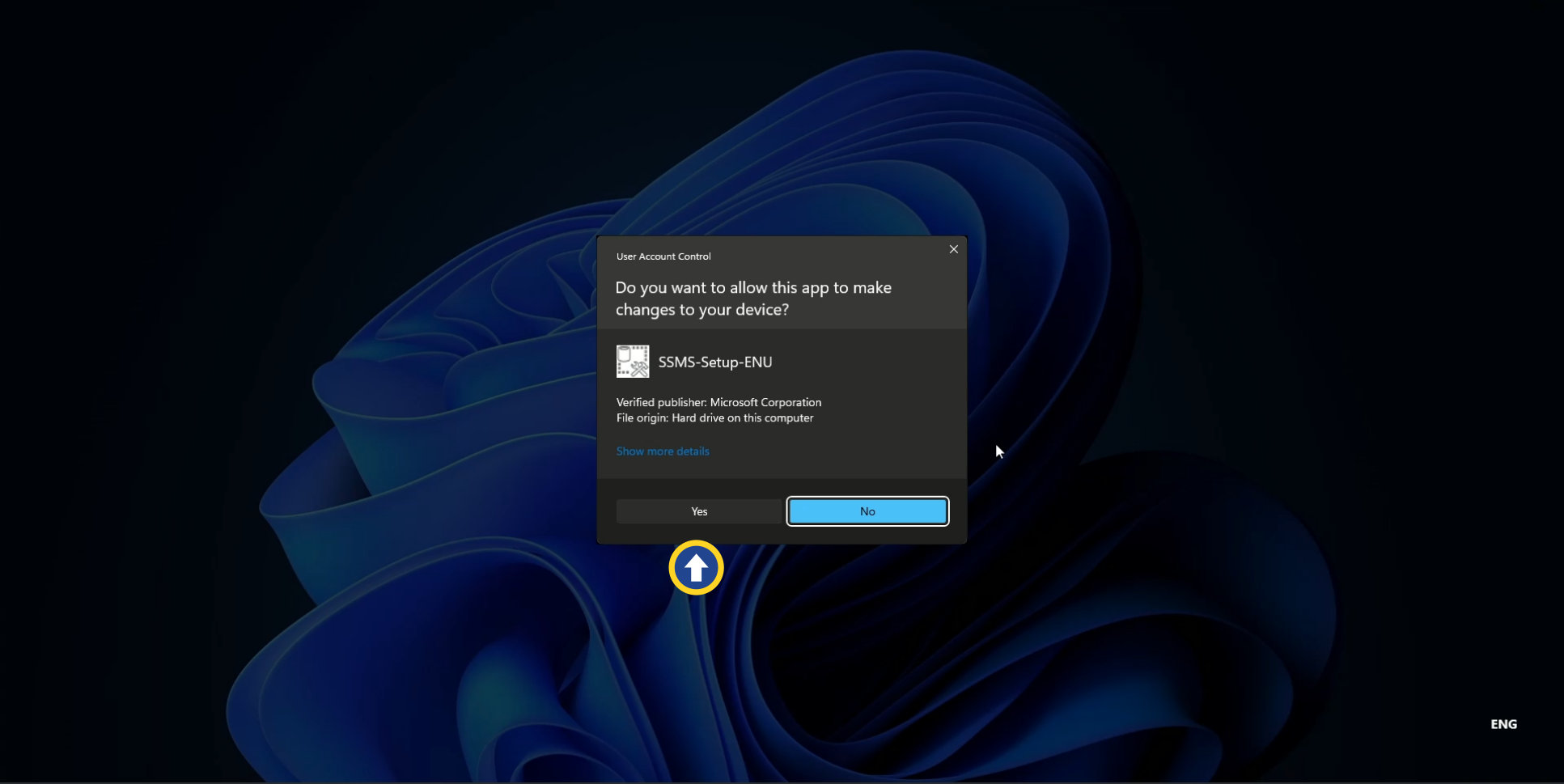
During the installation process, on the last screen of the dialog box, you will be given the option to install SSMS. It is recommended that you choose to install it.Locate the SSMS-Setup-ENU.exe file in your downloads folder, and double-click to run it. UAC will again ask for permission to begin the installation process. ClickYes.
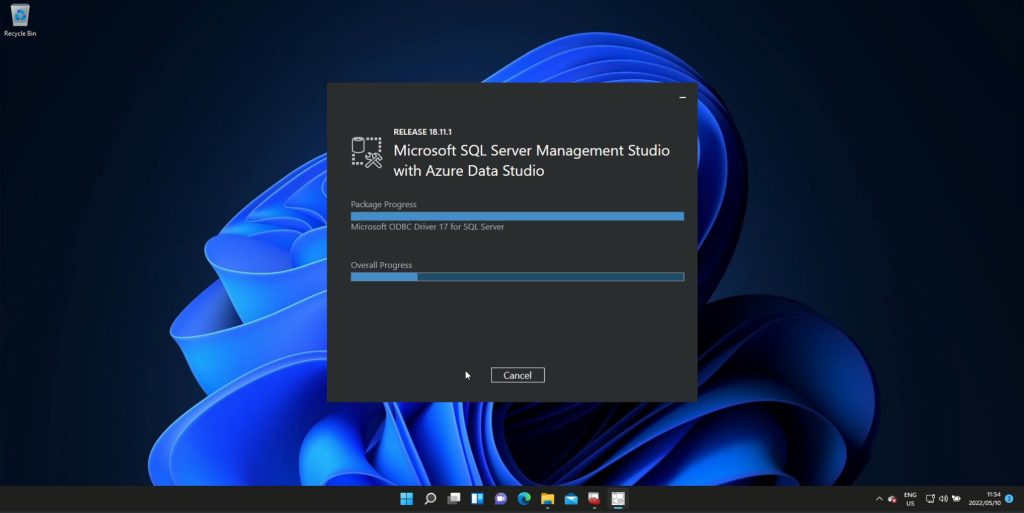
SQL Server Management Studio (SSMS) is an integrated environment for managing any SQL infrastructure, from SQL Server to Azure SQL Database.
Download SQL Server Management Studio here.
Filename: SSMS-Setup-ENU.exe | Size: 675MB
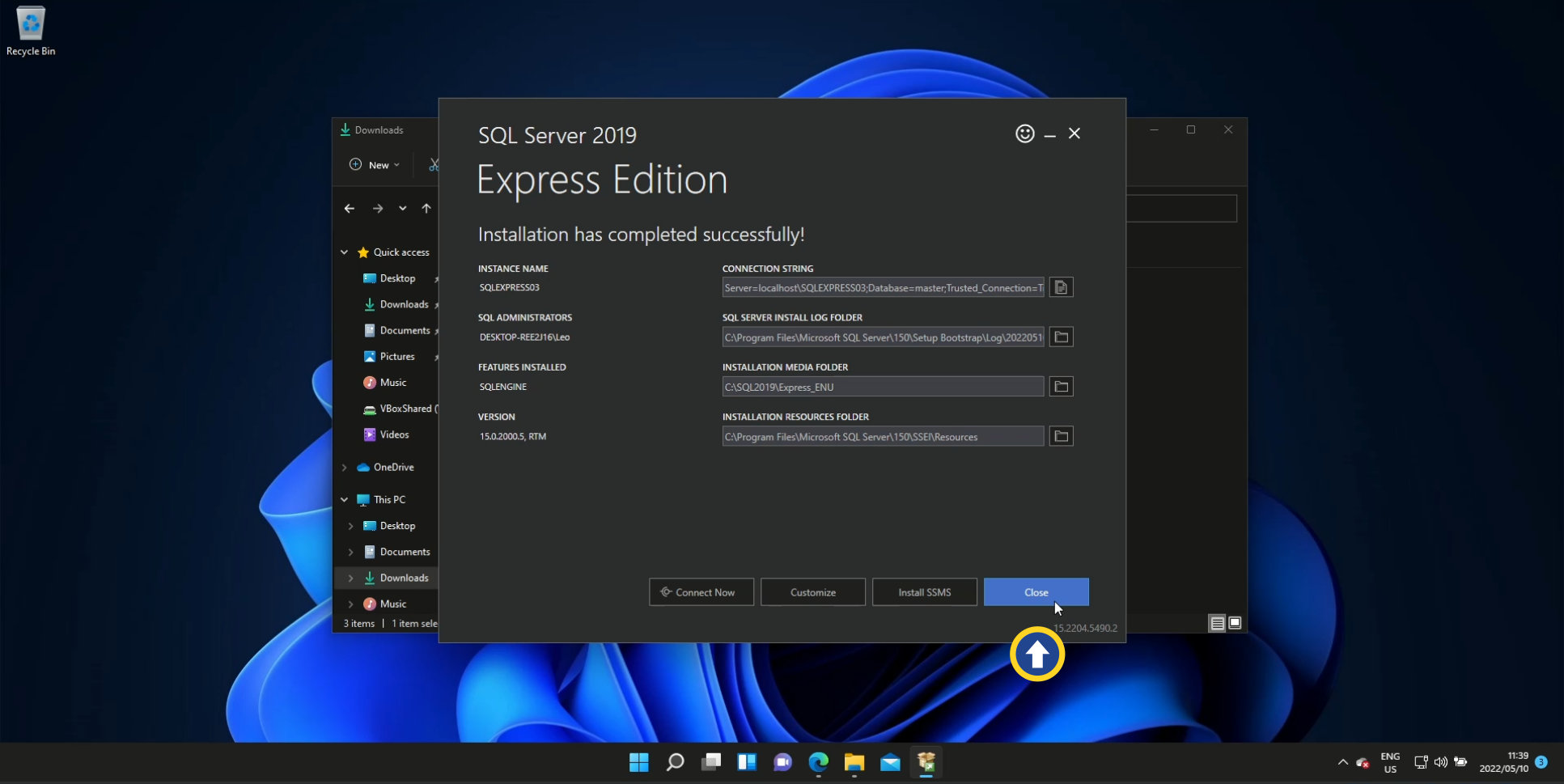
Step 7: Installation complete
On the final screen of the installation dialog, you have the option to change some of the internal options of your MS SQL installation. Leave the defaults as they are, and click Close.
SQL Server Management Studio (SSMS) is an integrated environment for managing SQL infrastructure. It allows access, configuration, and development of SQL Server components, Azure databases, and more. Suitable for developers and admins of all levels.
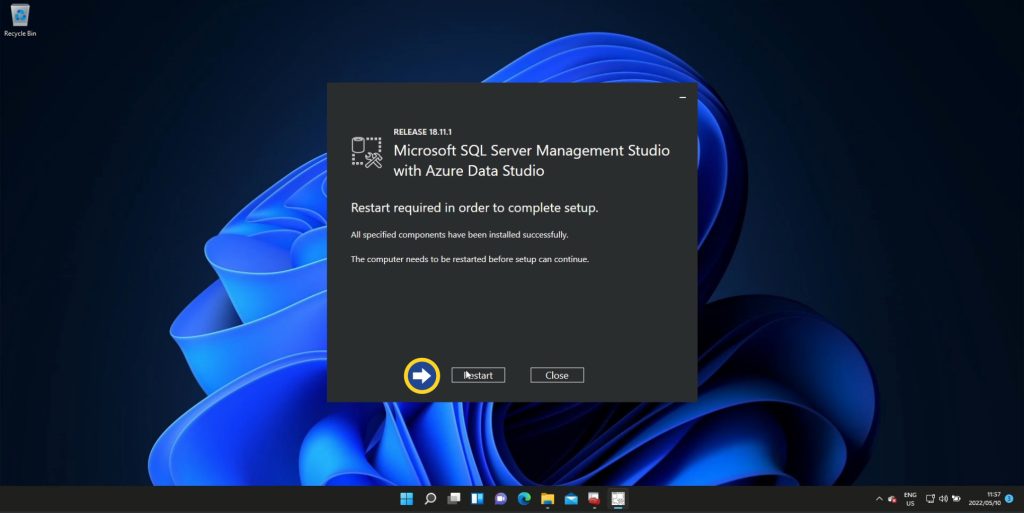
Step 8: Restart your computer
The end is nigh… and all you have to do to get closer to that final hurdle is restart your computer. Click Restart
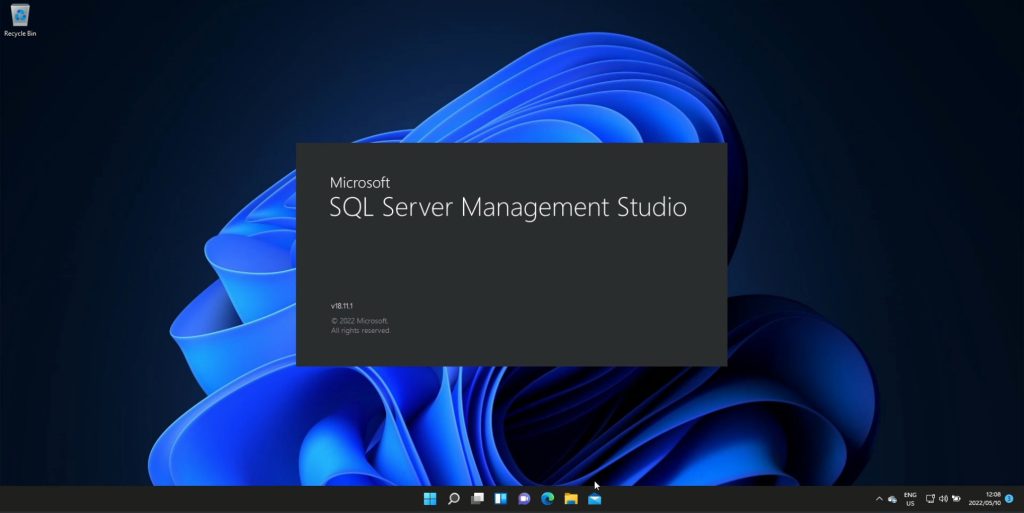
Step 9: Launch SQL Server Management Studio
Once your computer has restarted, click on the Windows start icon and type “SQL Server Management Studio”. Locate and click on the launcher in the list of apps.
+Bonus:
Step 10: Connect to your instance
Once SQL Server Management Studio has loaded, the ‘Connect to Server dialog pops up. In most cases, all the necessary defaults will be in place, which means we can simply click Connect. But, it’s worth exploring each of the provided options if your goal is to delve deeper into the MS SQL data platform:
- Server Type
- Database Engine (used for storing and processing data) – this is the default which we’ll use to create a database
- Analysis Services (data analysis and mining)
- Reporting Services (create, deploy, and manage reports)
- Integration Services (a data warehousing tool used for data management and migration tasks)
- Azure SSIS Integration Runtime (same as above, but integrates with Microsoft’s Azure)
- Server Name
- Every time you run the MS SQL Express installer, a new instance of SQL Server will be installed. Think of an instance as a warehouse that contains databases and other data sets. Every installed instance has its Server Name. This helps keep things nice and tidy when, say, you’re running two or more businesses. Each business can have its instance.
- Authentication
- Given that we left all the defaults in place during the installation, we’ll be using Windows Authentication.
Click Connect.
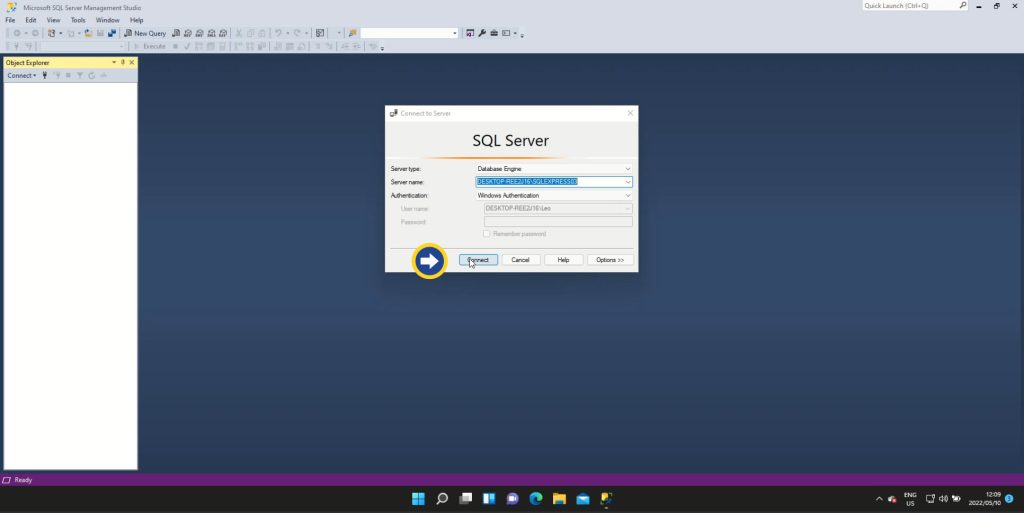
AND Done!!
Start your journey with SQL.
If you’re just starting out with SQL, there are many resources available to help you learn the
basics. Online tutorials, books, and video courses can provide a solid foundation of
knowledge to build upon. It’s important to start with the fundamentals, such as
understanding how to write basic queries to retrieve data from a database.
As you progress in your SQL journey, you can learn more advanced techniques, such as using
joins to combine data from multiple tables, creating and modifying tables, and optimizing
queries for performance. With practice and dedication, you can become proficient in SQL and use it to manage and analyze large datasets.
If you’re interested in pursuing a career in data management or analysis, learning SQL is a
great place to start. It’s a versatile and powerful tool that can help you make sense of complex data and drive insights and decision-making.


Leave a Reply